
Quick answer
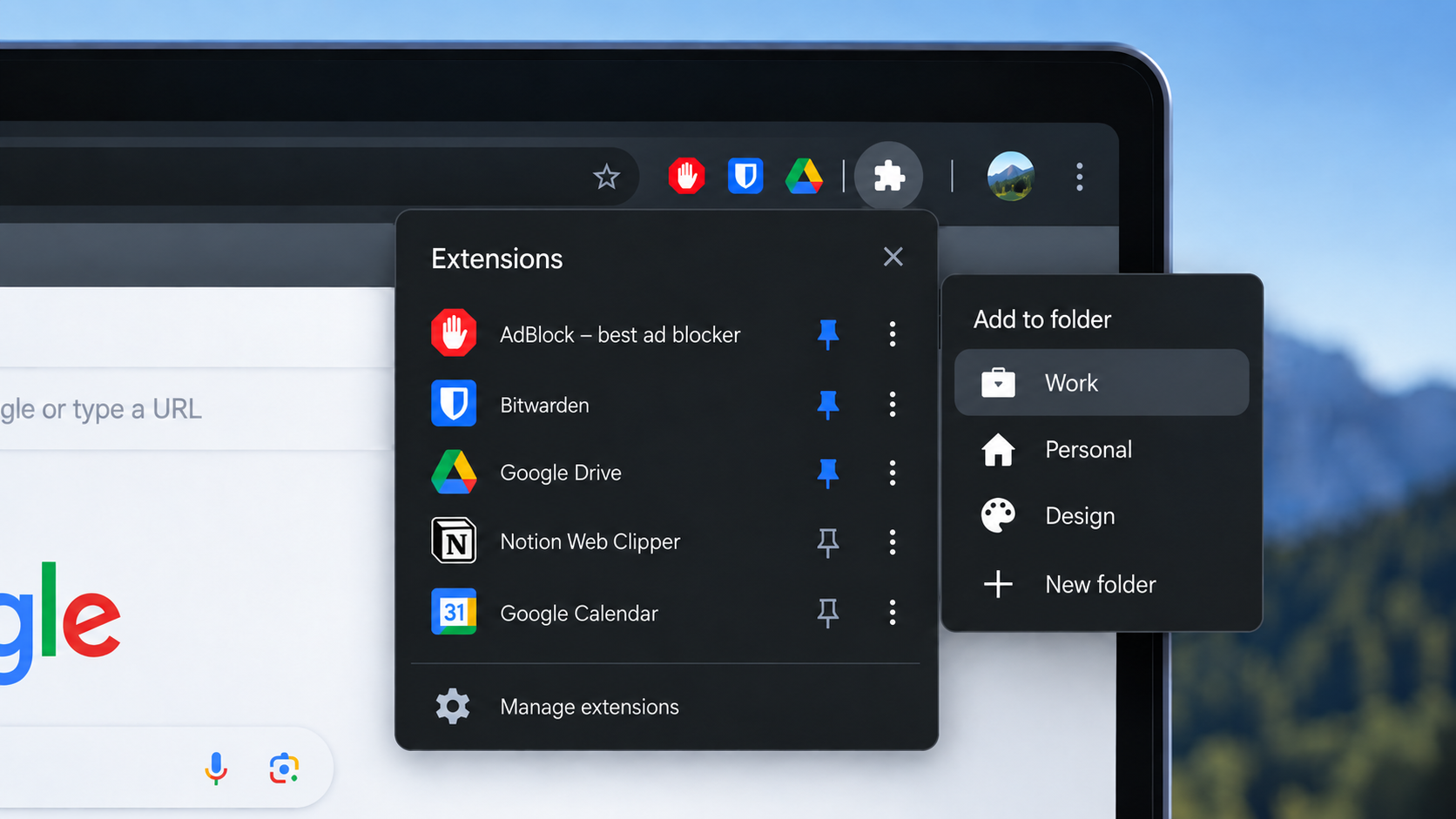
No. Chrome still does not offer named folders for extension icons in the toolbar. You can pin, unpin and reorder icons; third-party managers can add folders, tags or enable/disable profiles inside their own interfaces, but they do not create native toolbar folders. If you only want less clutter, Chrome’s built-in pinning controls are usually the simplest solution.
Contents
Can you put Chrome extensions into folders?
The feature people often have in mind is straightforward: one toolbar folder called “Writing,” another called “Research,” another called “Developer tools,” with the relevant extension icons inside each one.
Chrome does not currently document a native control that works that way.
Google’s help for managing extensions describes three toolbar actions: pin an extension, unpin it and drag pinned icons into a new order. Hidden extensions remain available through the Extensions menu. Chrome’s separate toolbar-customization help also covers showing, hiding and reordering toolbar buttons, without adding named extension folders.
Chrome has been changing the extension menu itself. The newer menu work is mainly about making site-access controls easier to understand. Google’s August 2026 extension notes also say Chrome 153 is experimenting in Canary with pinning an extension’s action icon to the top-level toolbar by default for some users. Neither change adds documented extension folders or labeled toolbar groups.
What Chrome lets you organize natively
Chrome gives you enough control to reduce clutter, although it is a fairly flat system.
You can:
- pin the extension icons you want visible all the time;
- unpin icons you rarely click;
- drag pinned icons left or right to arrange them;
- open the Extensions menu to reach unpinned extensions;
- enable, disable, remove and configure extensions from Manage extensions.
A practical setup is to pin only the extensions you use constantly and arrange those icons by task. You might keep your password manager and writing tools together, followed by developer tools, for example. The groups are only visual — Chrome does not preserve a label or boundary between them — but it keeps the toolbar manageable without installing anything else.
There is one small caveat: Google notes that some extensions do not offer the normal pin option.
Why “group Chrome extensions” can mean three different things
Search results and Chrome Web Store listings make this more confusing than it needs to be. Products that advertise extension “groups” can be solving three separate problems.
1. Folders or tags inside an extension manager
Some managers give you a separate dashboard where installed extensions can be sorted into folders, groups or tags. That can be useful when you have dozens of extensions and want a better catalog than chrome://extensions.
The organization lives inside that manager. It does not create native folders in Chrome’s own toolbar.
A current example is Ext Manager, which advertises custom groups and tags in its dashboard alongside extension profiles. Its own instructions tell users to open the full dashboard to organize extensions.
2. Profiles that enable and disable extensions together
Other managers use groups as workflow presets. You might create a “Work” group, a “Development” group and a “Personal” group, then switch sets of extensions on or off together.
One long-running Chrome Web Store listing simply called Extension Manager describes its “Lightning Group” feature in exactly those terms: quickly enabling or disabling a group of extensions.
This can be genuinely useful. It solves extension state management, though, rather than toolbar organization.
3. Actual folders on the Chrome toolbar
This is the feature many people are searching for, and it is the one Chrome still does not provide as a documented native option.
An extension can have its own toolbar action and popup. Chrome also exposes a management API that lets extensions inspect and, with the relevant permission, enable or disable other installed extensions. Those capabilities make manager dashboards and bulk toggles possible.
Google’s documented extension APIs do not expose a native toolbar-folder container that a manager can fill with other extension icons. A manager can give you one icon that opens its own interface; that is different from adding labeled folders to Chrome’s toolbar itself.
What is the closest alternative?
It depends on the irritation you are trying to remove.
If the toolbar is simply too crowded, unpin most extensions. Keep only the ones you click frequently, then drag those into a sensible order.
If you want to categorize a large extension collection, a manager with folders or tags can make the collection easier to browse.
If you regularly switch between sets of extensions, a profile-style manager can save a lot of repetitive enabling and disabling.
If you specifically want several named folders directly on Chrome’s toolbar, there is no clean native equivalent at the moment.
A quick comparison
| Need | Chrome built-in | Third-party extension manager |
|---|---|---|
| Cleaner toolbar | Yes — pin, unpin and reorder icons. | Yes, although usually unnecessary for this alone. |
| Named folders directly on the toolbar | No documented native feature. | Generally no; folders usually live inside the manager’s popup or dashboard. |
| Folders or tags for installed extensions | No. | Often yes. |
| Enable or disable groups in one action | Not as named user-created profiles. | Common feature. |
Should you install an extension manager just for folders?
We would not install another extension purely to make a modestly cluttered toolbar look tidier. Pinning and unpinning already handles that problem with less complexity.
A manager starts to make more sense when you have a large extension library or when you repeatedly change which extensions are enabled for different kinds of work. At that point its dashboard, search, tags or profiles may solve a real workflow problem.
Treat the manager like any other extension before installing it. Our guide to checking whether a Chrome extension is safe before installing it covers the full process; at minimum, check what permissions it requests, who publishes it, how recently it has been updated, its privacy disclosures and the quality of its recent reviews. A feature called “folders” is not enough reason by itself to give an unfamiliar extension broad browser access.
We are deliberately not naming a “best extension manager” here. The Chrome Web Store has several tools with different feature sets, user bases and maintenance histories, and we have not hands-on tested them enough to recommend one.
What Chrome would need to add
The clean solution would be browser-level grouping: a labeled or collapsible container on the toolbar that holds normal extension actions while preserving each extension’s own icon and popup.
That would solve the visual-organization problem without requiring a second extension to manage the first set of extensions.
Chrome already has good tab groups, so the mental model would not be unfamiliar. For extensions, however, the current controls remain pin, unpin, reorder and manage.
If you came here for folders
If you searched for “Chrome extension folders” because you want labeled groups of extension icons on the toolbar, Chrome still does not have that feature in its documented controls as of September 2026.
For a cleaner toolbar, use pinning and manual ordering. For a large extension collection or workflow-based enable/disable sets, a third-party manager may help — just check whether its idea of “groups” is actually the feature you wanted.
Sources and verification
- Google Chrome Help — Install and manage extensions
- Google Chrome Help — Customize the Chrome toolbar
- Chrome for Developers — What’s new in Chrome extensions
- Chrome for Developers — chrome.action
- Chrome for Developers — chrome.management
- Chrome Web Store — Extension Manager
- Chrome Web Store — Ext Manager